
After completing your myFHR registration, you can optionally import device and health data into myFHR. Currently, you can only import data from Apple Health and Fitbit. Any device you have imported data from will display under "LINKED PROVIDERS AND HEALTH PLANS" on the "Me" or "More" tabs.
Apple Health
The Apple Health app gathers health data from your iOS devices such as an iPhone or an iPod Touch. The app is built in—you do not need to install it.
After completing the myFHR iOS app registration, you are asked if you will allow myFHR to access your Apple Health Records. Click "Continue" to allow access. Allowing access imports your Apple Health data into myFHR, allowing you to view more health data in one convenient place.
Apple Support provides information about using the Health app on iOS devices.
After allowing access, use the resulting screen to enable the categories of Apple Health Records that you will allow myFHR to access, and then touch "Share Current Records."
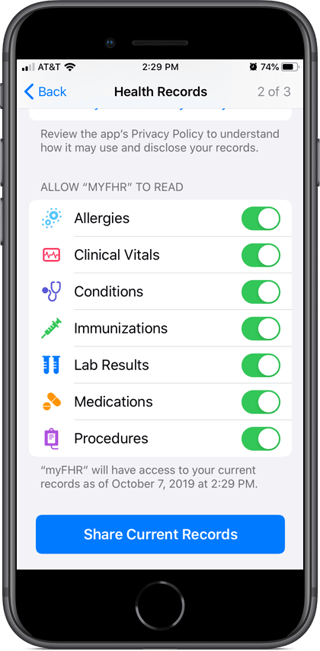
Select how you would like to share new records—"Ask Before Sharing" or "Automatically Share."
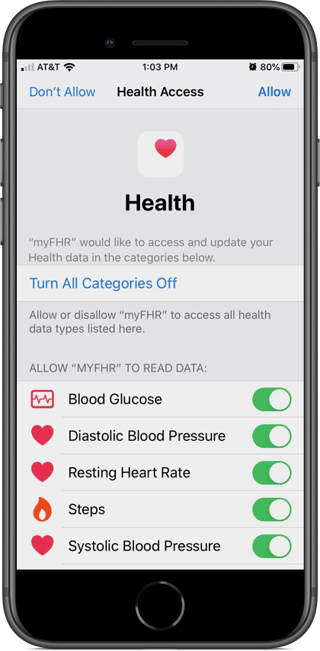
Enable the Apple Health categories you wish to share. Enable all categories by selecting "Turn All Categories On" or enable each category individually, and then select "Allow" in the upper-right corner.
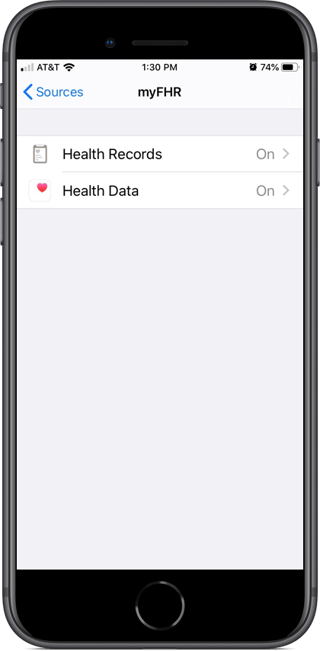
You can change your preferences at any time by going to your phone's Settings, selecting "Health → Data Access & Devices → myFHR," and enabling or disabling Health Records.
Fitbit
You can also import data from a Fitbit device. The process is similar to importing data from a provider or health plan. To begin, touch the "Add Provider or Health Plan" button on the "Me" or "More" tab.
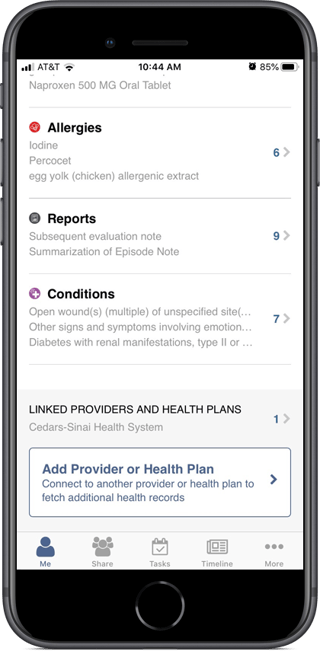
If you haven't yet added a provider or health plan, the button label will instead read "Get Started".
Using the resulting "Connect Provider" screen, touch the search icon (upper right), and enter "fitbit".
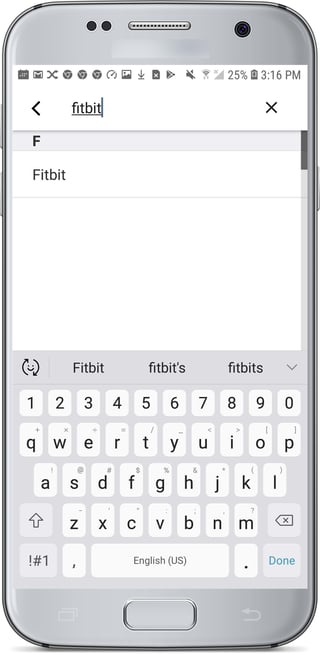
Touch the device's name. myFHR will establish a connection with your device account. Sign in to your account, and follow any provided instructions to allow access to your account.
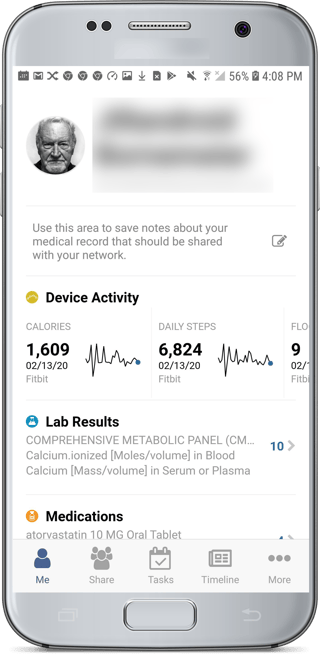
You are returned to the "Me" tab. Wait several minutes and then pull down to refresh the screen. Your imported device data displays under "Device Activity" on the "Me" tab.
Any device you have imported data from will display under "LINKED PROVIDERS AND HEALTH PLANS" on the "Me" or "More" tabs.