
Imported health data that displays on the "Me" tab can include lab results, medications, immunizations, allergies, reports, conditions, and procedures and services. If you are taking medications or have allergies or conditions that are not included in your imported health data, you can add them. If you are no longer taking medications or do not have allergies or conditions that are included in your imported health data, you can remove them.
Only your health data displays on the "Me" tab. If you have access to family and friends' data, their health data will display along with yours on the "Timeline" tab.
Choosing How Data is Displayed
Medications, Immunizations, Allergies, and Conditions are displayed in a default view. The default for medications is "Current Medications," for immunizations, allergies, and conditions it is "My [health category]." To change from the default, click the drop-down caret to display the list of available options. The screenshot below displays the available options for medications.
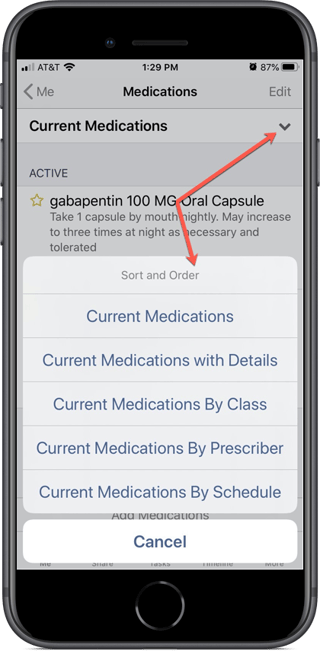
Select an option from the list. The items are sorted and ordered accordingly.
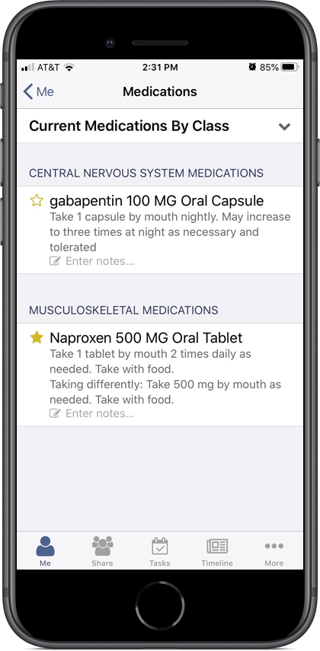
Viewing Lab Results and Reports
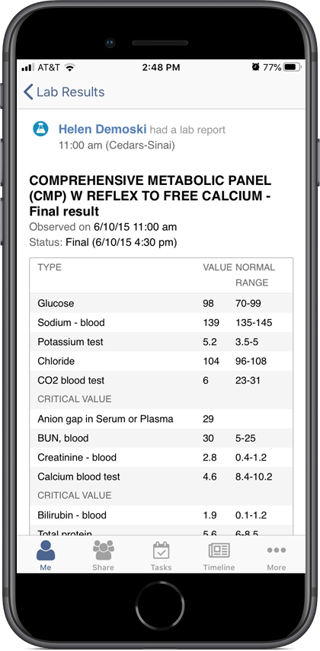
The number to the right of the caret indicates how many lab results or reports are available for viewing.
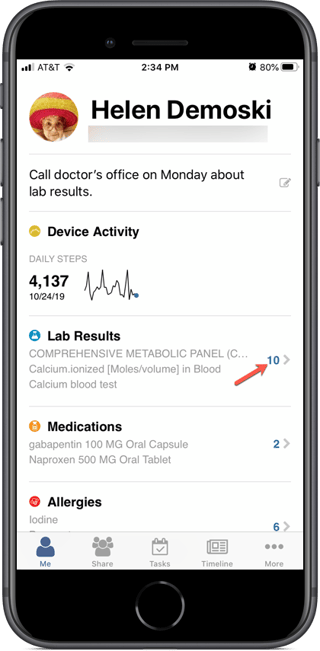
Touch the caret to view all or your lab results or reports. They are listed from most recent to oldest.
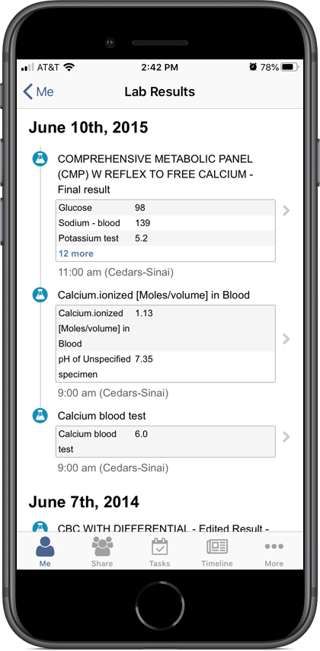
Touch the caret to the right of an individual result or report to view it in its entirety.
Viewing Other Health Data
The "Me" tab will also display Medications, Immunizations, Allergies, Conditions, and Procedures and Services if they are available in your synchronized health data. As with lab results and reports, the number to the right of each caret indicates how many items are available for viewing. Touching the caret displays all items in that health data category listed from most recent to oldest.
When viewing the items in one of these health data categories, you can:
- Touch a star to "favorite" the item. You may find it helpful to do this to quickly locate an item on a list.
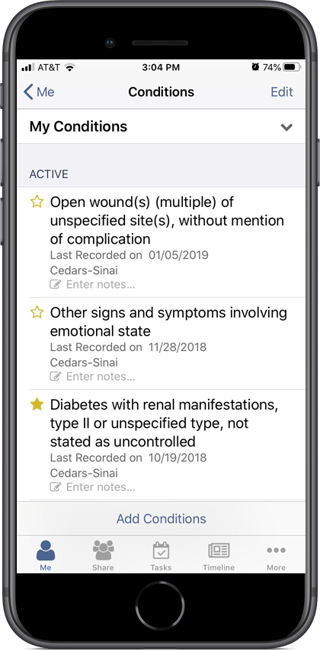
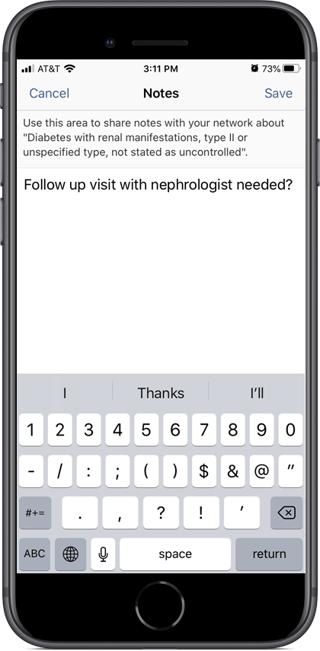
- Add a note about the item by touching "Enter notes," using the resulting text editor to enter a note, and then touching "Save."
You are returned to the item list. The note you entered displays.
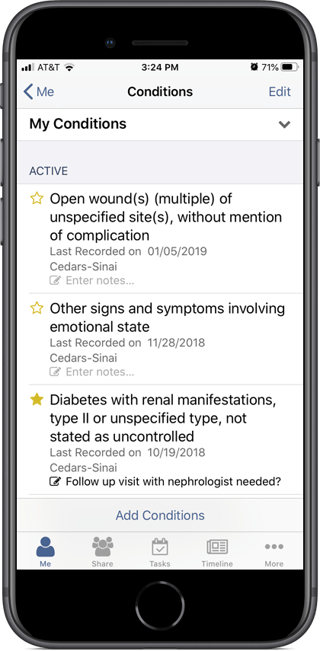
Touch the edit icon to the left of a note to edit or delete it.
Adding Medications, Allergies, and Conditions
You cannot currently add a medication when using an Android device. The screenshots below demonstrate how you add an allergy to the iOS myFHR app.
To add a new item to one of these health data categories:
- Touch the caret to view all items in the category.
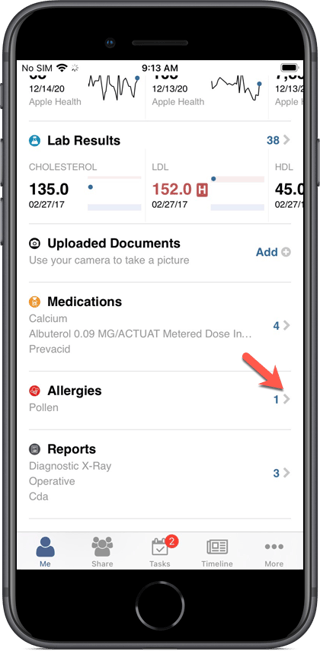
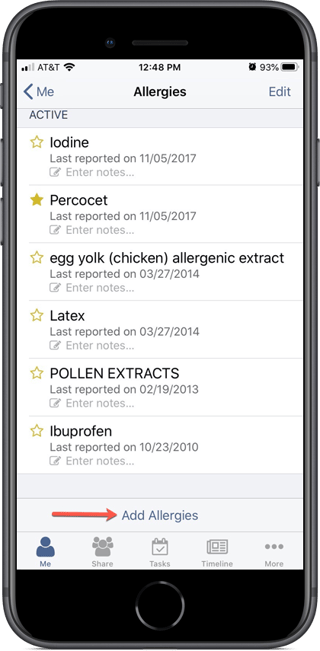
- Scroll to the bottom of the list and then touch "Add [health data category]."
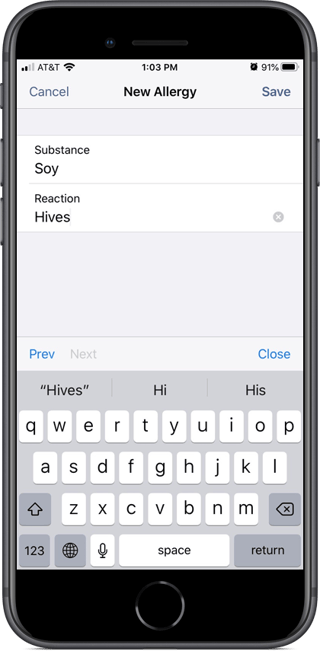
- Using the resulting screen, enter text in the required fields, and then touch "Save."
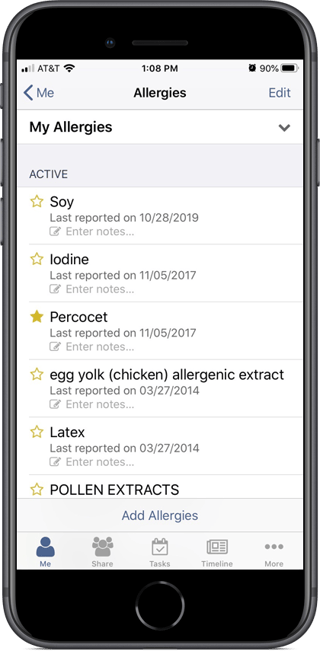
- The item you added displays at the top of the list (the list is sorted from most recent to oldest).
Removing Medications, Allergies, and Conditions
Although you can manually add or delete health data, this only changes the health data that displays in myFHR. It does not add to or delete from the data in your health plan's or provider’s system.
To remove an item from one of these health data categories:
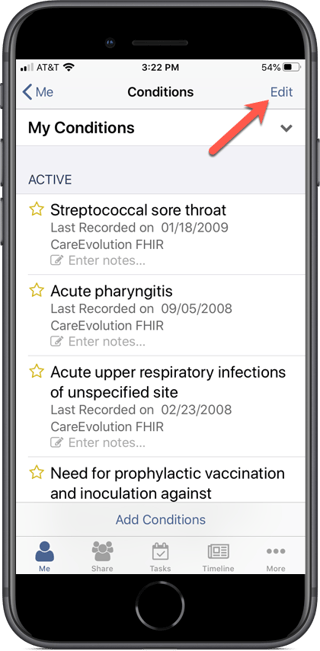
- Touch the caret to view all items in the category.
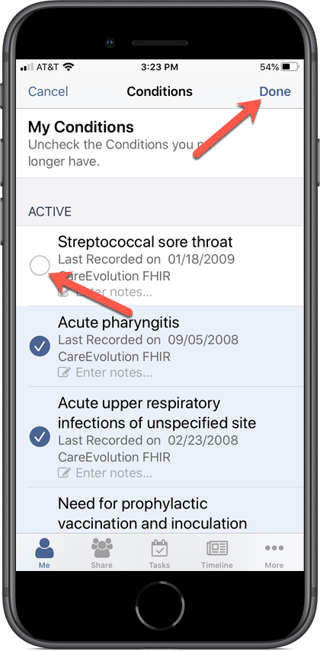
- Depending on the platform you are using touch "Edit" or "Update" on the resulting screen to edit the category.
- Touch to uncheck the item you would like to remove, and then touch "Done" or "Save."
- Items you remove will no longer display on the "Me" tab.